Release Notes (v.5.0 - 10/12/24)
Contents
a. Screen Source (Light source settings) 2
b. Spectral Collection Analyses (Analysis Portal) 5
c. Ideal Beam Expander (User-defined object) 8
d. Lens – Optical Geometric properties (User-defined object) 9
We’re pleased to announce the release of the latest version of 3DOptix, featuring a suite of new tools, features, and capabilities. These enhancements are thoughtfully designed to empower you to accomplish more, with greater ease and efficiency.
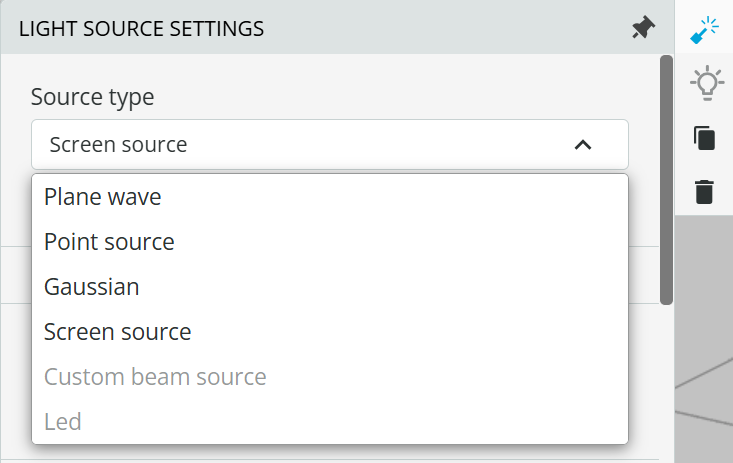
After adding a light source to the scene and selecting it, users can access the light source settings to choose a new source type: Screen Source. This option allows for greater flexibility in defining how the light interacts with the scene or the systems, offering control over the spatial distribution and intensity pattern of the source. By selecting Screen Source, users can tailor the light's properties to meet specific simulation needs, providing a more precise representation of light behavior in the optical system.
Once the Screen Source is chosen as the light source type, users can fine-tune its spatial characteristics via the spatial information settings. This feature provides flexibility in adjusting key properties that influence the light source's distribution and behavior within the scene. A variety of parameters can be modified to change or adapt the source characteristics.
|
Parameter type |
Comments |
|
|
|
|
Half width |
Sets the width of the source |
|
Half height |
Sets the height of the source |
|
Period X |
Full X width divided by Number of X pixels |
|
Period Y |
Full Y width divided by Number of Y pixels |
|
Number of X axis pixels |
X pixels in the image |
|
Number of Y axis pixels |
Y pixels in the image |
|
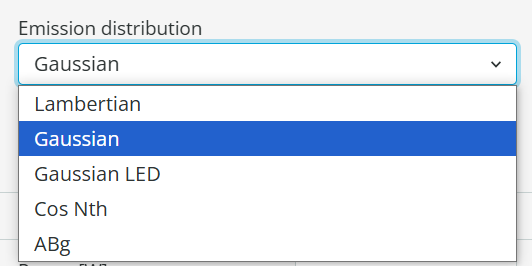
Emission distribution |
Sets the screen source distribution pattern. |
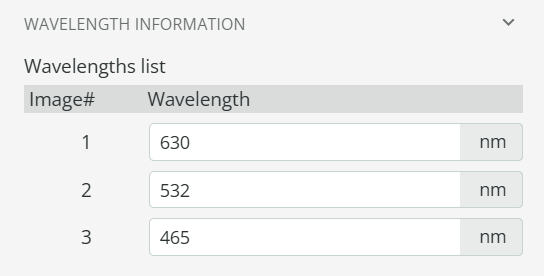
Wavelengths can be configured in the Wavelength Information section, where users have the option to define up to three different wavelength types. By defining multiple wavelength types, users can model a broader range of optical behaviors, ensuring more accurate representations of light interaction within the system.
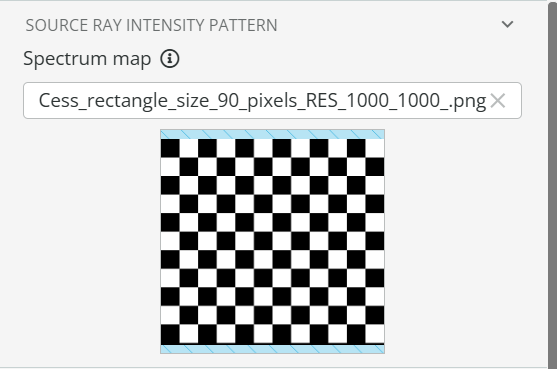
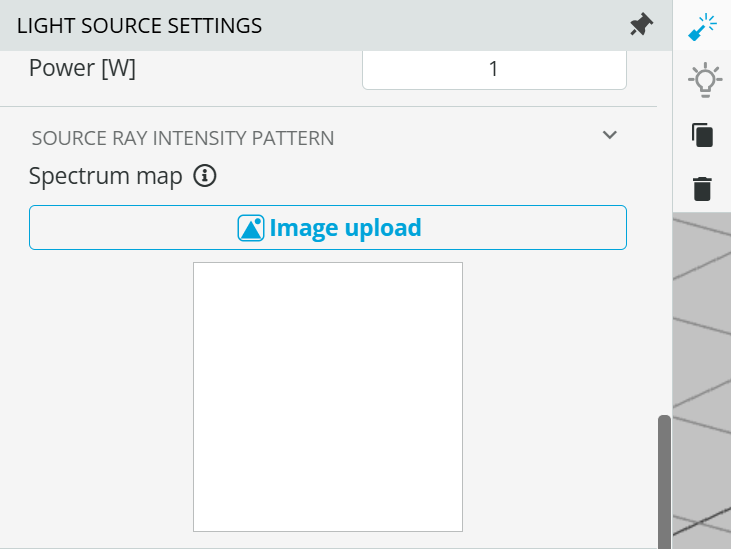
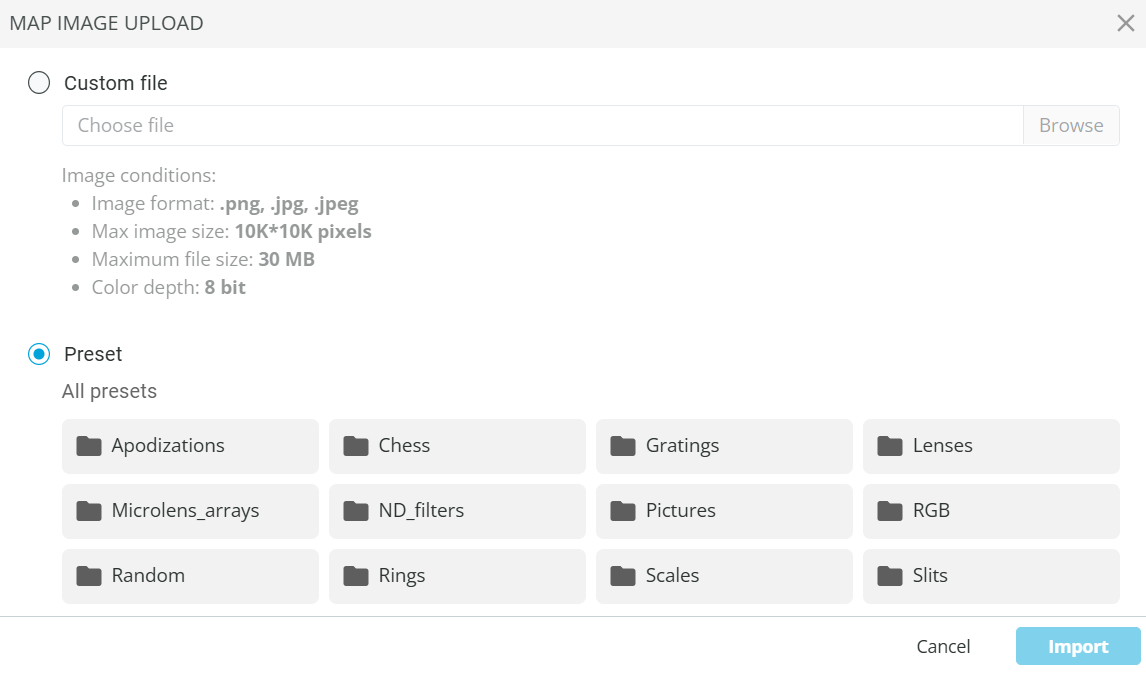
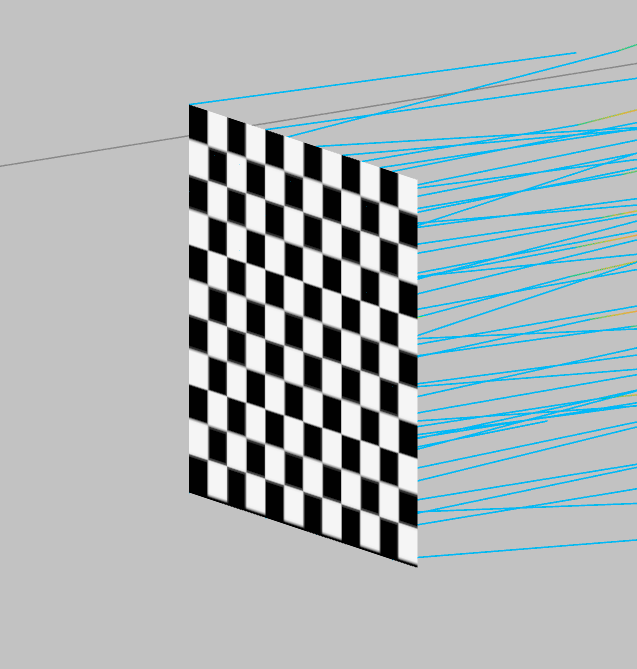
Additionally, when Screen Source is selected as the source type, users can define the Spectrum Map within the Source Ray Intensity Pattern settings. This option enables users to define a test pattern or an image which can then be analyzed after it traverses through the optical system. By integrating the Spectrum Map into the intensity pattern, users can tailor the light source to match specific optical system requirements or experimental conditions, ensuring accurate simulations and analysis of the light’s behavior within the system. This added level of customization enhances the flexibility and precision of the design process.
The Spectrum Map offers customization options, allowing users to either upload a custom file or select from a range of preset options. Depending on their analysis and evaluation needs, users can choose the most suitable preset to accurately model the light source. This flexibility ensures that the spectrum aligns with specific optical configurations or experimental conditions, enabling more precise control and improving the overall analysis.
After configuring all parameters and defining the source ray intensity pattern, the Screen Source is ready for visualization. Users can view the spatial distribution and intensity of the light within the scene, gaining insights into its interaction with the environment. Real-time adjustments can be made, ensuring the setup meets specific requirements and allowing for efficient evaluation of system performance.
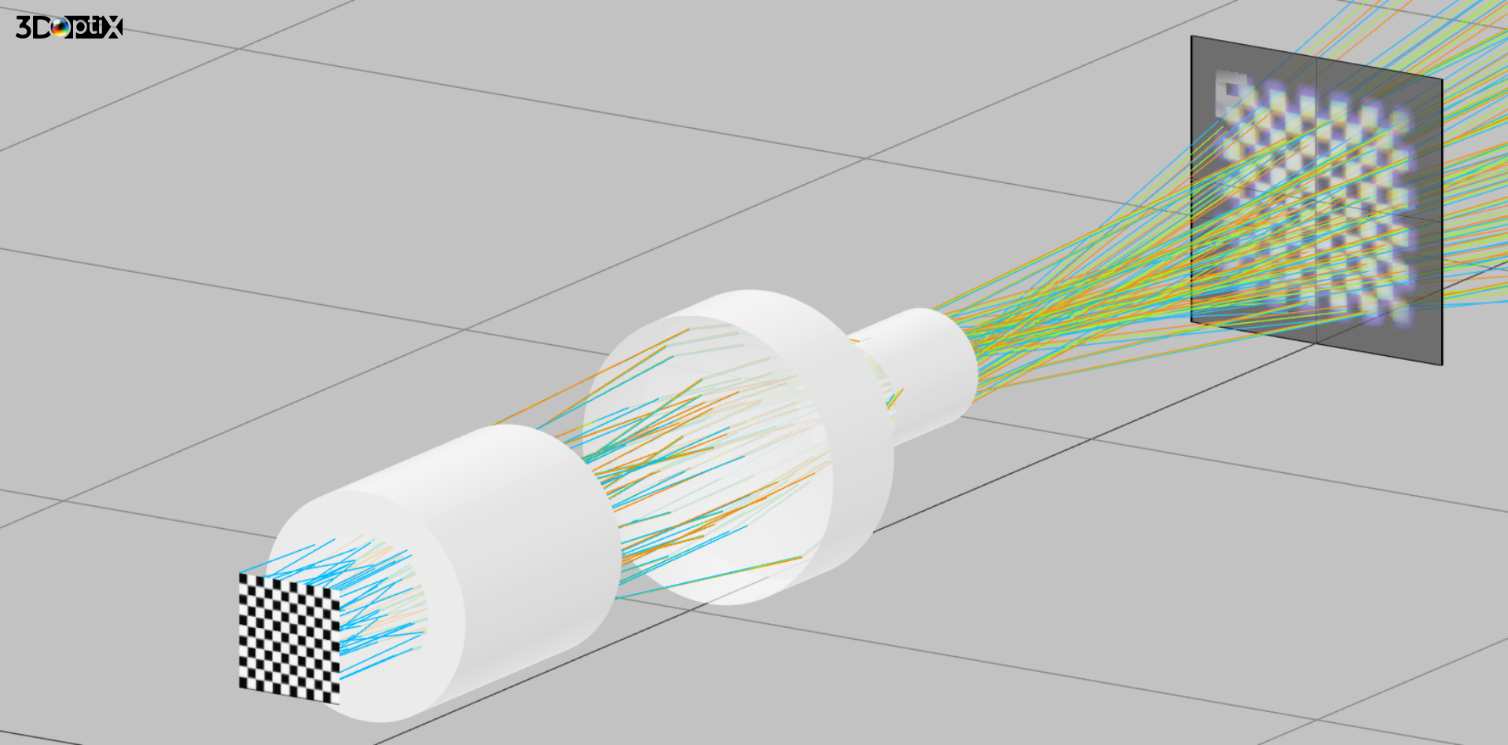
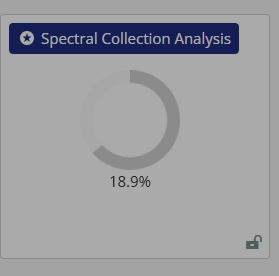
The newly added Spectral Collection Analysis feature offers an advanced method for evaluating optical systems that utilize the Screen Source. This tool allows users to gather and analyze spectral data across different configurations, providing a deeper understanding of how wavelengths and light distribution interact within the system. With Spectral Collection Analysis, users can gain more precise insights into system performance, facilitating the optimization of design parameters and enhancing the overall efficiency of the optical system.
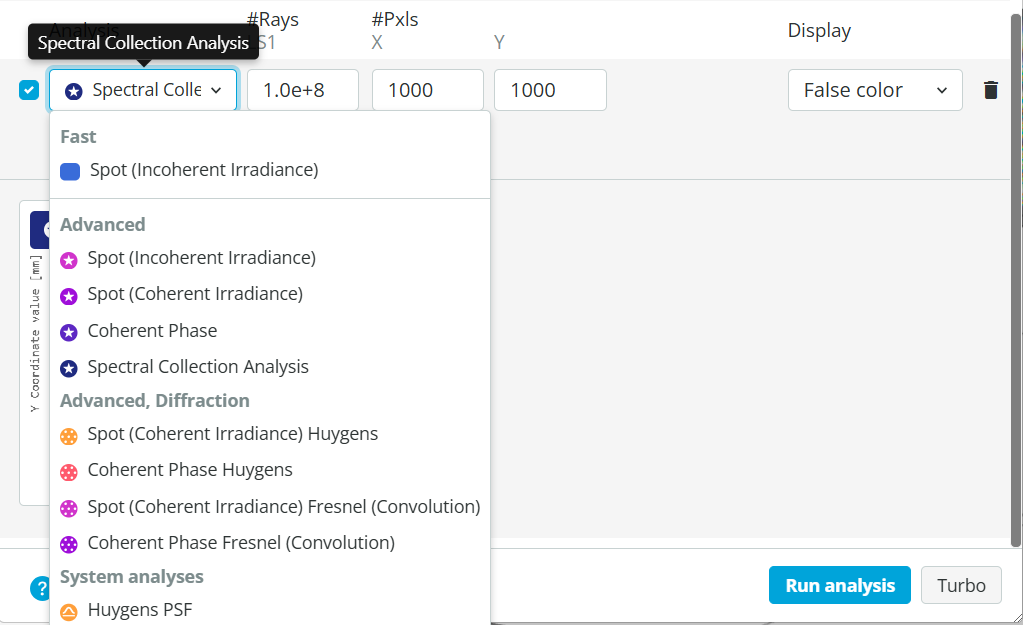
This feature is available through the Analysis Portal, where users can select Spectral Collection Analyses as the analysis type. Once chosen, users can leverage its capabilities to evaluate and visualize spectral data, tailored to specific optical configurations.
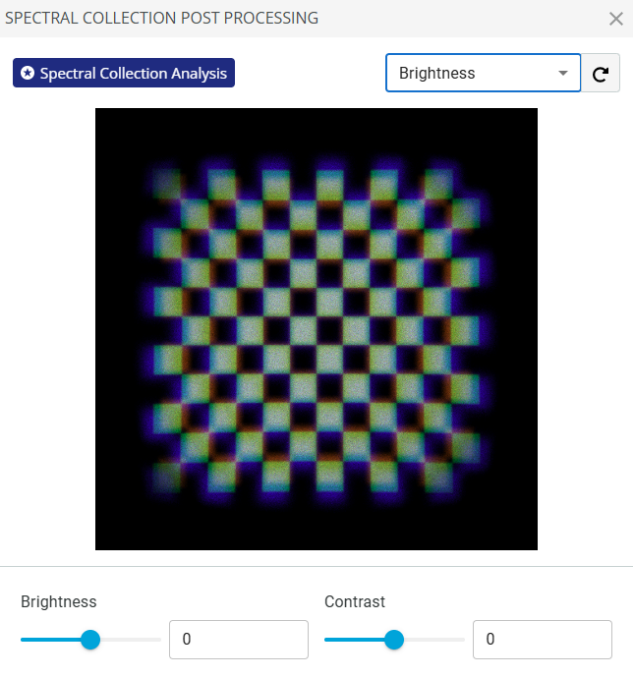
After running the analysis, users have the option to enlarge the detector view for a more detailed examination of the results. By clicking on the expanded view, additional analysis tools become accessible, providing deeper insights into the data. These tools allow users to further manipulate and refine the results, offering the ability to explore different parameters.
The following tools are available to refine and adjust the image being analyzed, giving users the ability to customize the view and extract more detailed information. The tool is equipped with the Interactive feature which enables real-time adjustments, ensuring users can adapt the image to their specific analysis requirements and gain meaningful insights.
|
Parameter type |
Available Settings |
Range |
||||
|
|
|
|
||||
|
Brightness |
Brightness |
Contrast |
-1 – 1 |
-1 – 1 |
||
|
Hue/Saturation |
Hue |
Saturation |
-1 – 1 |
-1 – 1 |
||
|
Vibrance |
Amount |
- |
-1 – 1 |
- |
||
|
Denoise |
Exponent |
- |
0 – 50 |
|
||
|
Unsharp Mask |
Radius |
Strength |
0 – 200 |
0 – 5 |
||
|
Noise |
Amount |
- |
0 – 1 |
|
||
|
Sepia |
Amount |
- |
0 – 1 |
|
||
|
Vignette |
Size |
Amount |
0 – 1 |
0 – 1 |
||
|
Histogram |
Red |
Green |
Blue |
0 - 255 |
0 - 255 |
0 - 255 |
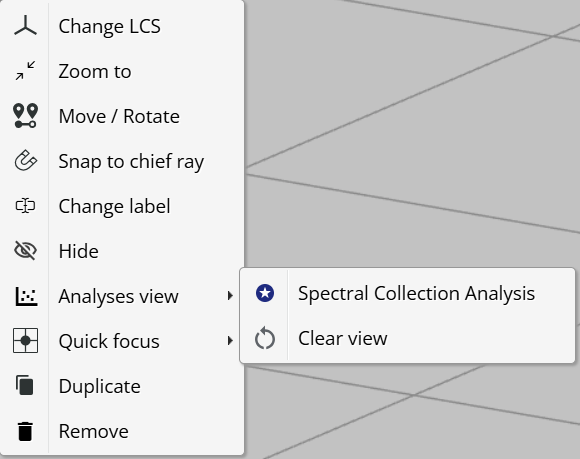
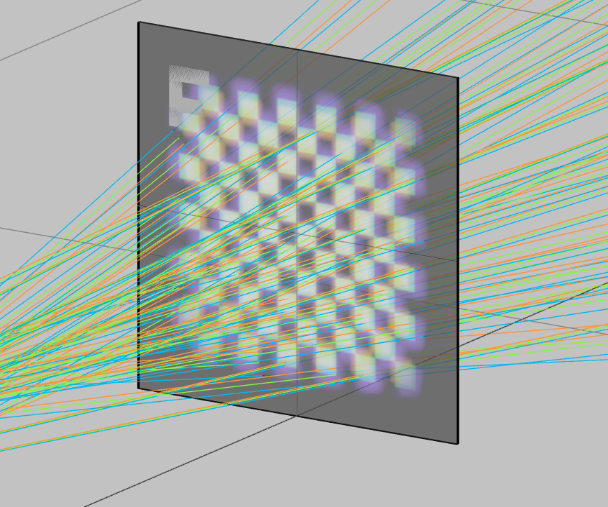
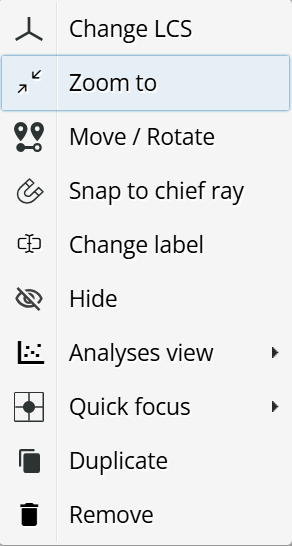
To visually view the output from the optical system being analyzed, users must enable Spectral Collection Analysis under the Analyses view section after selecting the detector. This action will display the results directly within the user interface, offering an immediate and intuitive representation of the system's performance.
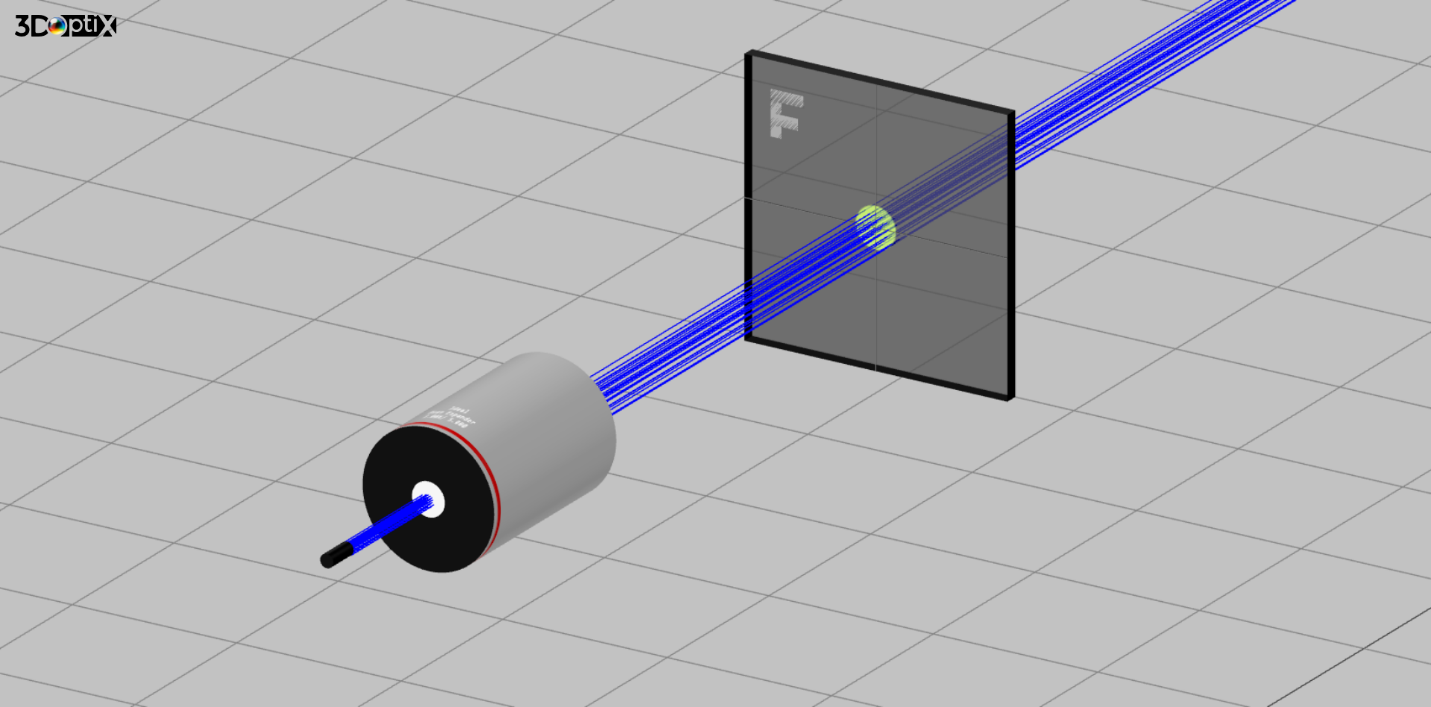
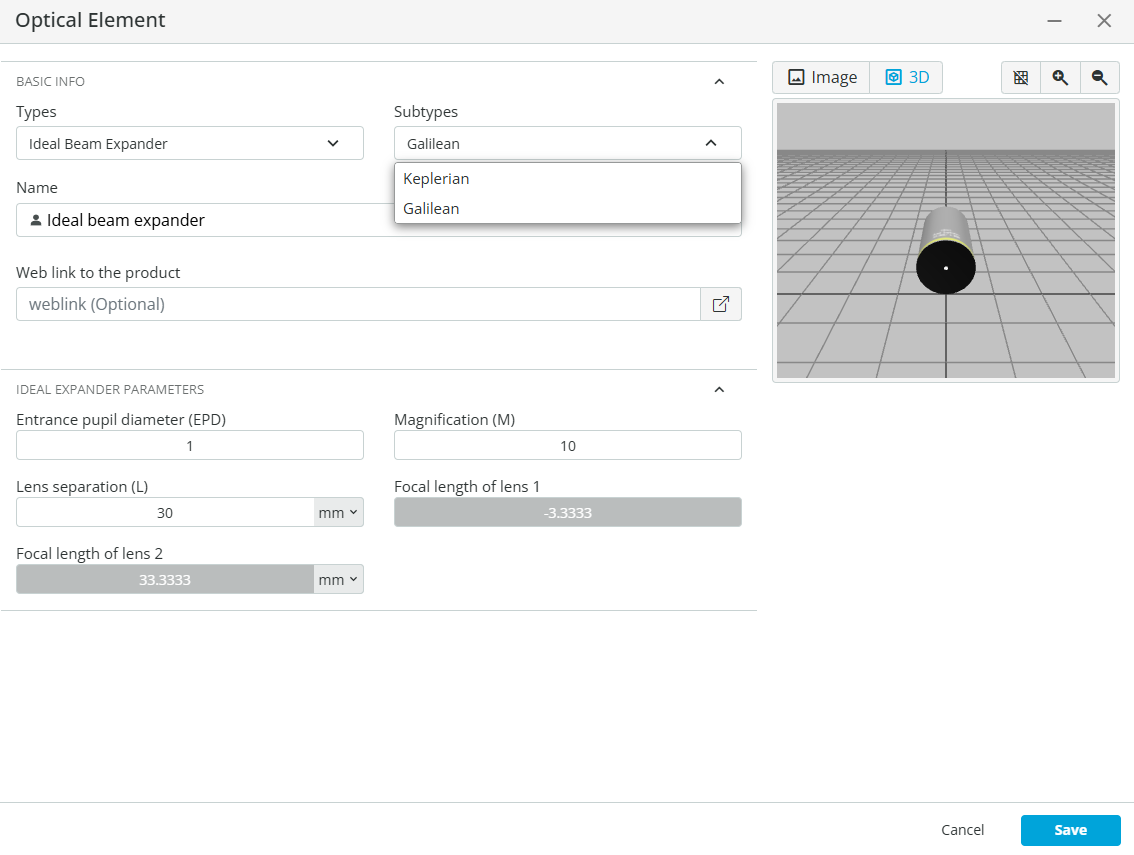
A new optical element, the Ideal Beam Expander, is now available under user-defined objects. This element allows users to integrate an ideal beam expander into their optical setups, offering precise control over beam expansion parameters. Designed to uniformly expand the input beam while preserving its quality, the Ideal Beam Expander is ideal for applications that require a larger beam diameter without added divergence.
Users can choose between two subtypes for the Ideal Beam Expander: Galilean and Keplerian.
Additionally, users can further customize the expander by adjusting key parameters such as the Entrance Pupil Diameter (EPD), Magnification (M), and Lens Separation (L).
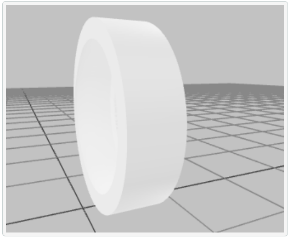
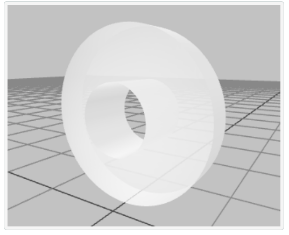
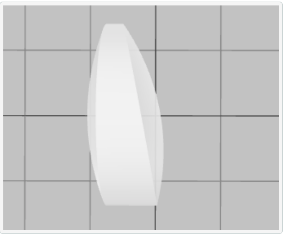
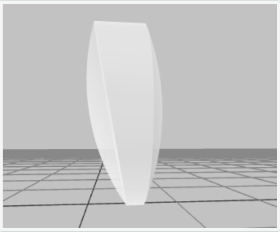
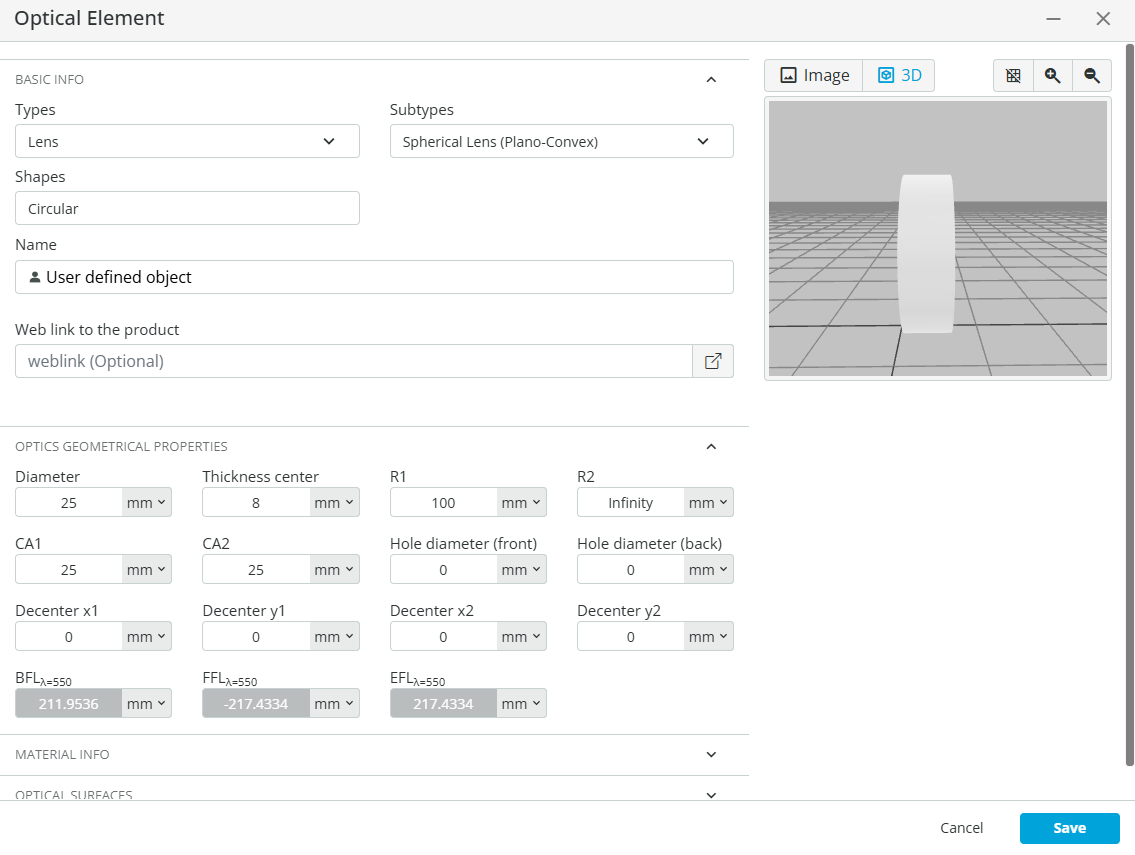
Users now have the capability to further customize lens geometry within the Optics Geometrical Properties section. This added flexibility allows for precise optimization of optical design, as well as an in-depth evaluation of tolerance effects on overall system performance. A set of new parameters is now available, providing users with enhanced control over lens effective area, size, curvature, and alignment adjustments. These parameters, detailed in the following table:
|
Parameter type |
Comments |
Example |
|
|
|
|
|
CA1, CA2 |
Defines Clear aperture of the lens |
|
|
Hole diameter (front, back) |
Creates a hole in the middle of the Lens |
|
|
Decenter (x1, x2) |
Introduce surface decenter in +/- X direction |
|
|
Decenter (y1, y2) |
Introduce surface decenter in +/- Y direction |
|